DeskRest 1.22.0: Break Timer at the MacBook Notch

The menu bar timer works, but it sits in a corner you rarely look at, and on a crowded menu bar it can even get hidden. The notch, on the other hand, is right in the middle of the screen and mostly unused. With 1.22.0 DeskRest can show your break countdown right there, a bit like the Dynamic Island on the iPhone, and give you quick actions when you hover it.
Your Next Break, Right at the Notch
When the notch overlay is on, two small items sit next to the notch: on the left how many breaks you've taken today compared to your daily goal, on the right a ring that fills up until your next break. Move the pointer onto the notch and it expands into a panel with the time until your next break and three buttons: Start Now, +5 min and Skip.
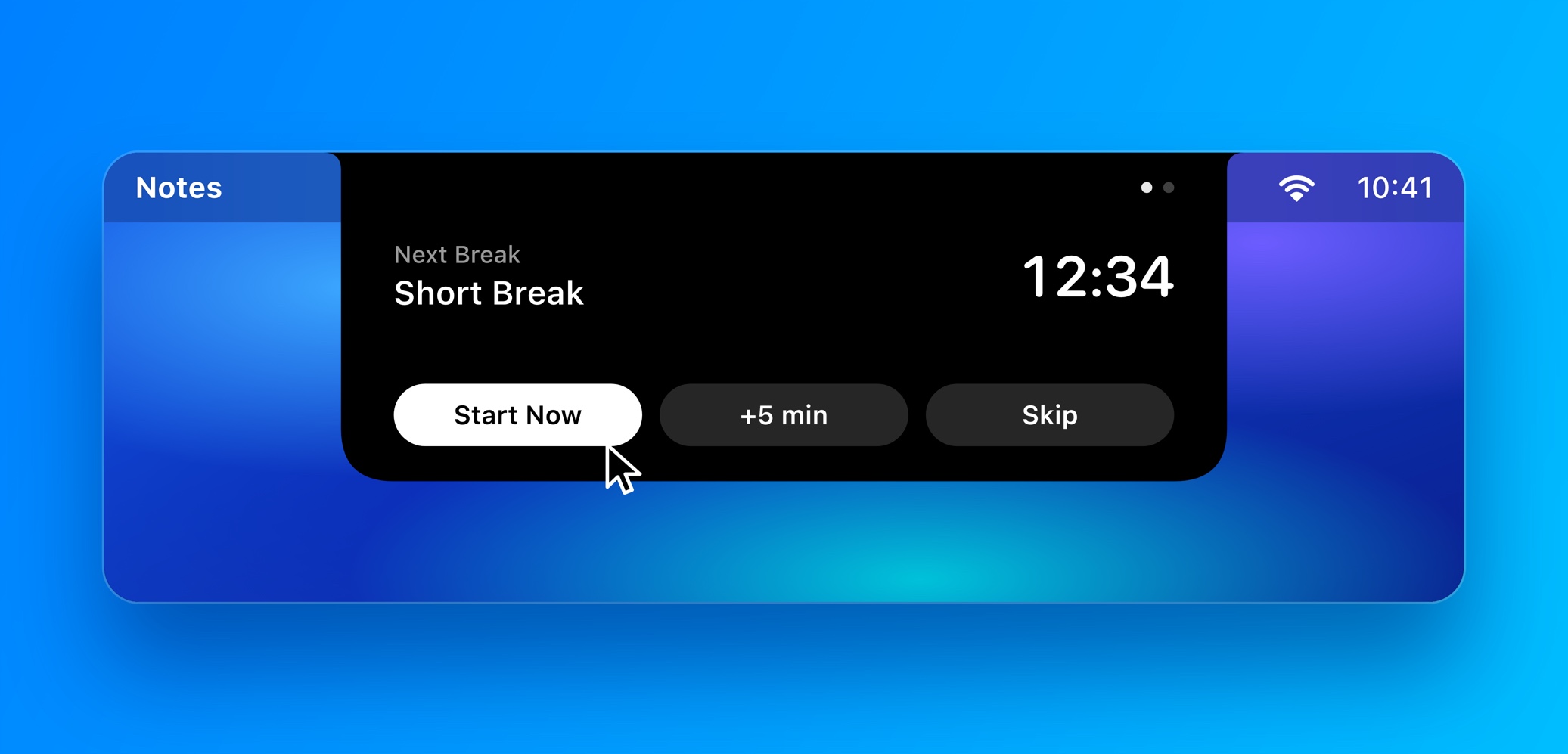
The buttons follow the same rules as the menu bar, so if you use a stricter break commitment mode, the overlay won't let you skip your way around it. If you stopped DeskRest, the panel shows a Start DeskRest button instead.
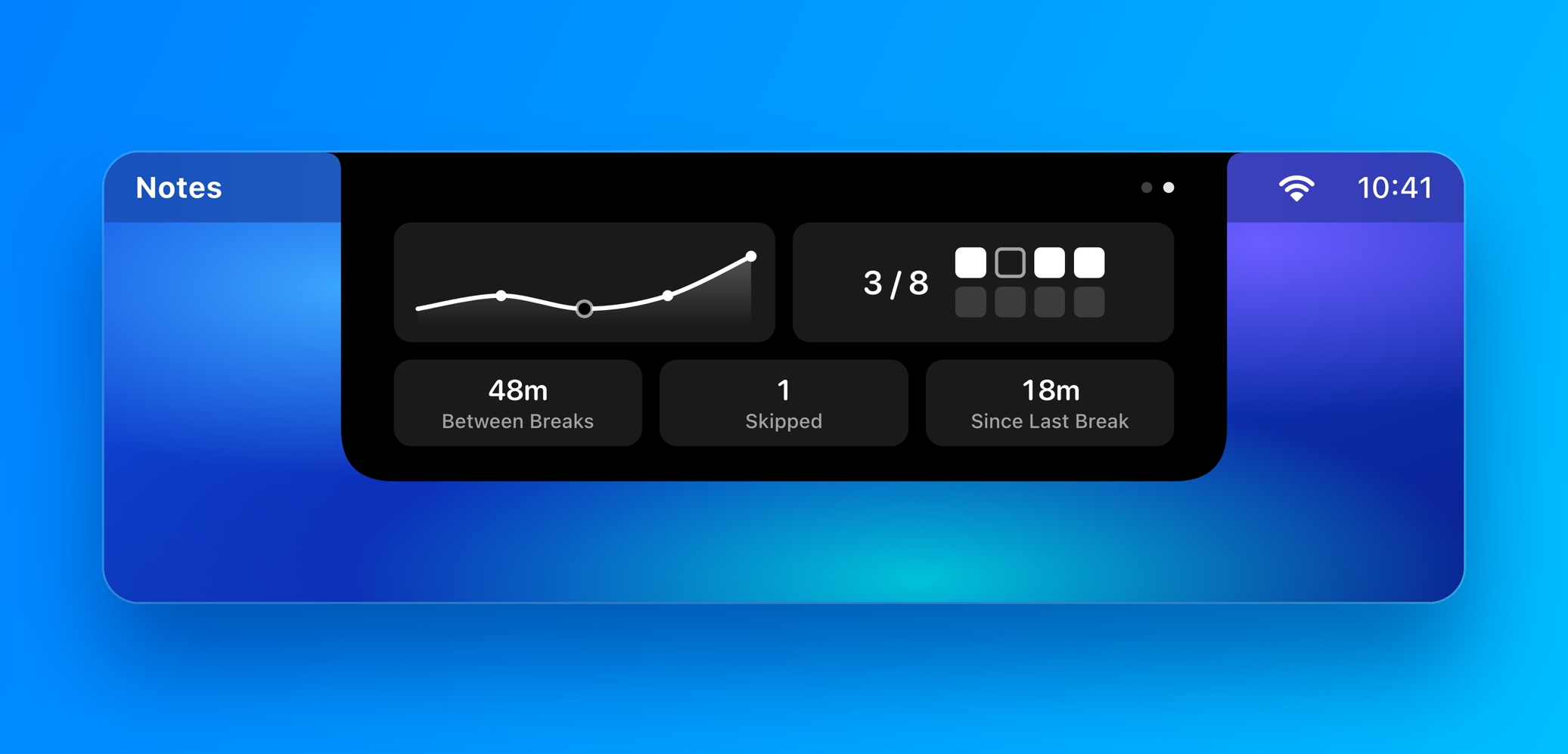
Swipe sideways on the trackpad (or click the small dots) to switch to today's stats: a curve of your breaks over the day, your progress towards the daily goal, the average time between breaks, how many you skipped and how long ago your last break was.
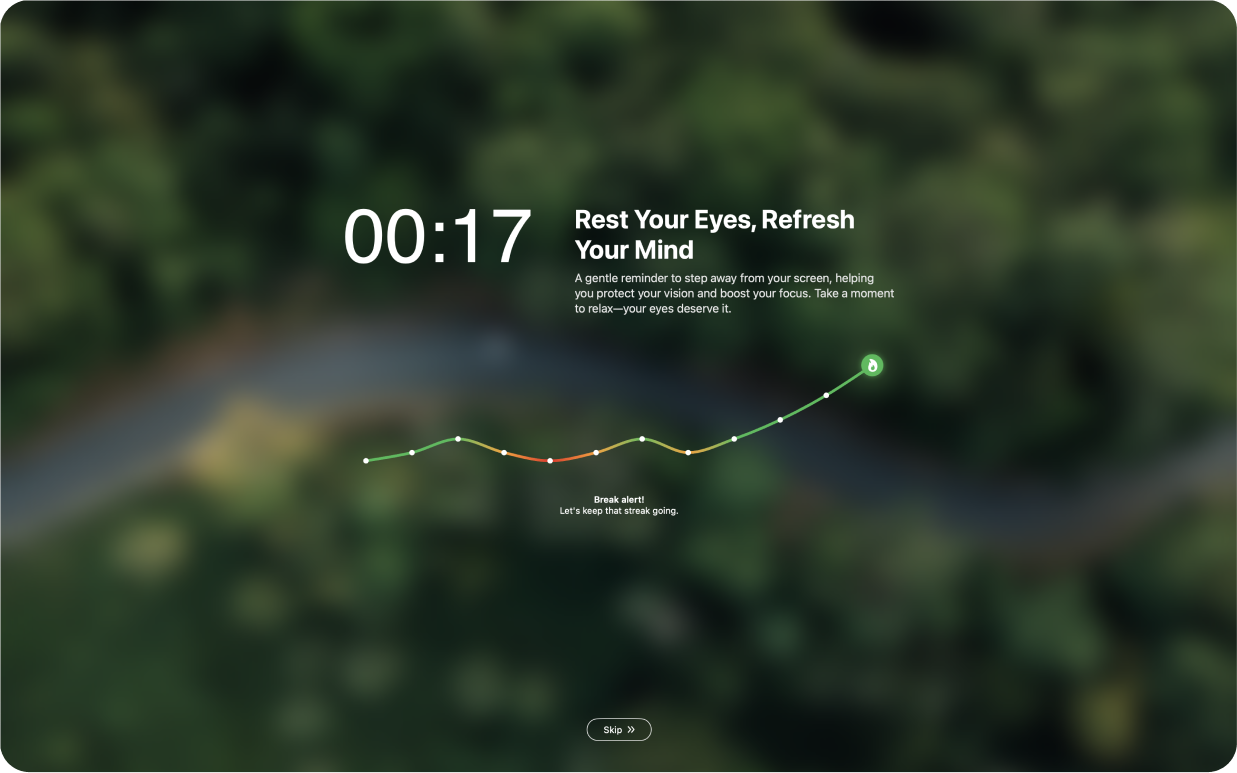
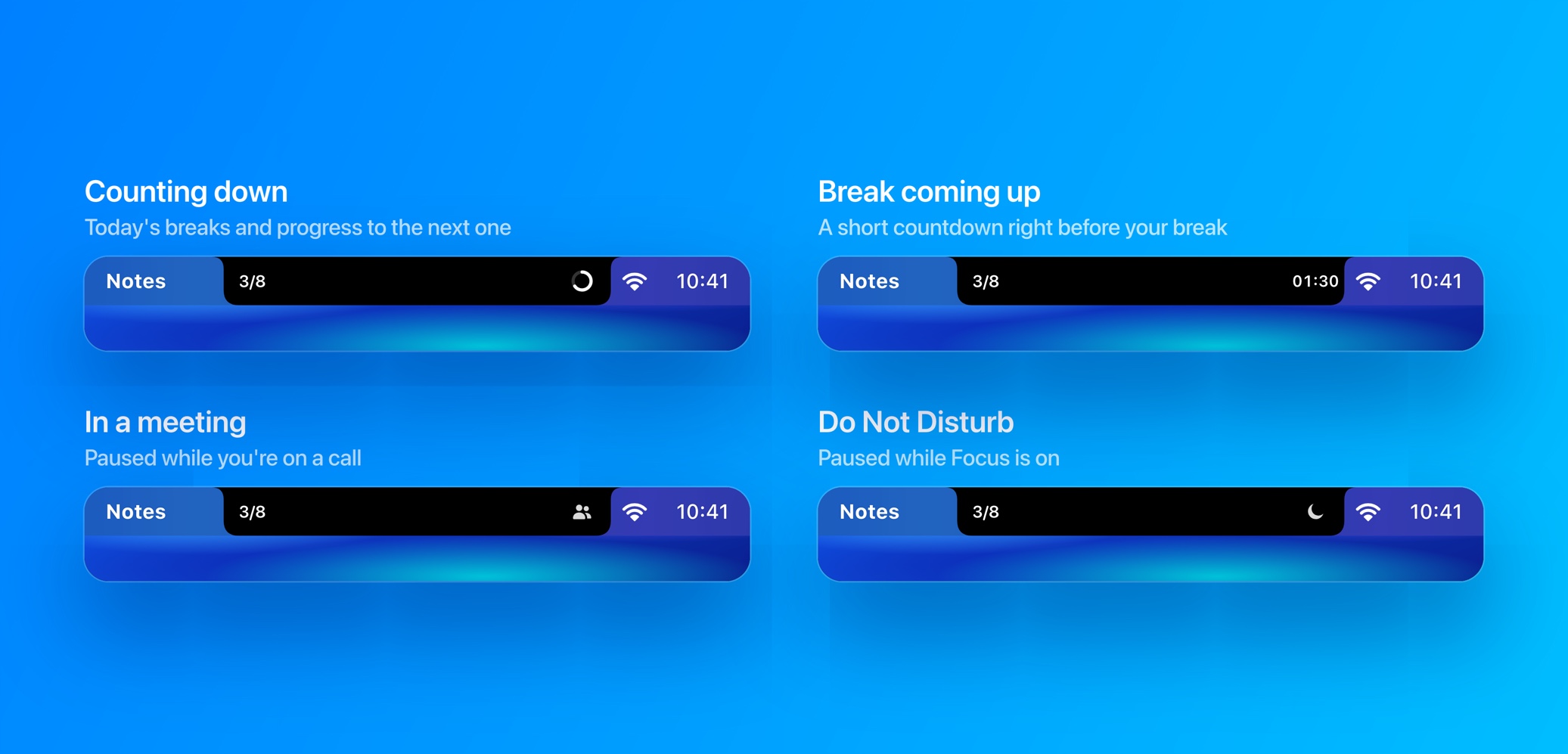
The compact view also changes with the situation. Shortly before a break, at the same moment your break reminder would appear, the ring turns into a countdown. When breaks are paused, for example during a meeting, while a video is playing or while Do Not Disturb is on, a small icon tells you why. During the break itself the overlay steps aside for the break screen.
How to set it up:
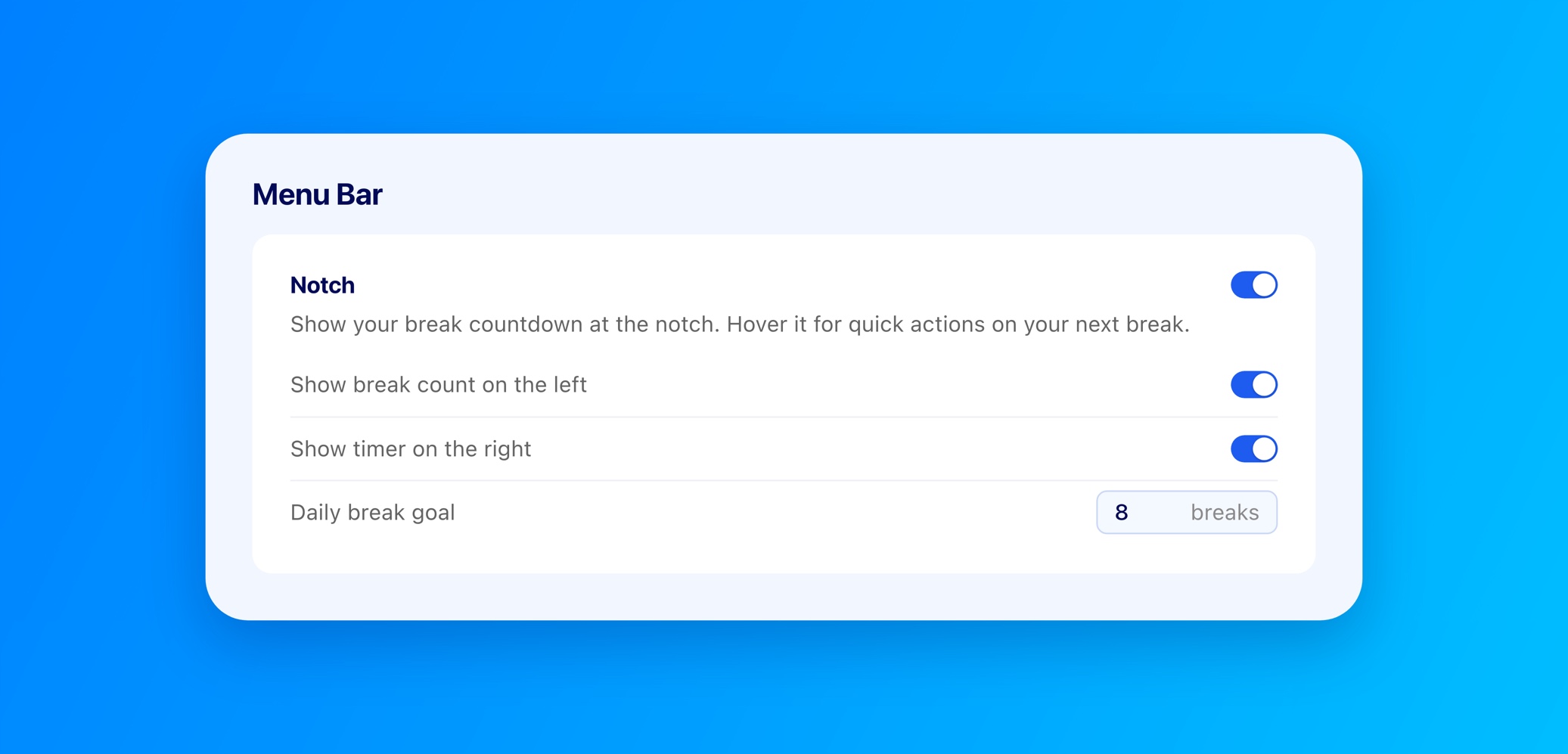
- 1.Open Settings > General > Menu Bar.
- 2.Turn on the Notch toggle. It's off by default, so nothing changes until you switch it on.
- 3.Choose whether you want Show break count on the left and Show timer on the right.
- 4.Set your Daily break goal, anywhere from 1 to 16 breaks. The default is 8.
The overlay only appears on MacBooks with a notch. If DeskRest can't find a display with a notch, the settings tell you so. It also works in full screen apps and on every Space, and when it's collapsed, clicks go straight through to whatever is underneath.
Fixed
- Old time after a break: Right after a break or after changing the interval, the menu bar showed the previous time for about a second. It now updates immediately.
If you have a MacBook with a notch, give it a try and tell me how it feels in your daily work, especially if you already use other apps that live at the notch. You can reach me on Discord or through the feedback page.
Elevate Your Workday with DeskRest
Experience a transformative approach to your daily work routine. DeskRest seamlessly integrates into your workflow, offering intelligent break reminders, posture alerts, and focus-enhancing tools. Boost your productivity, protect your well-being, and enjoy a more balanced work life.